ITS Student Hub
Welcome to Queen Mary University of London Student ITS Online Hub. This page will help you get started using IT Services (ITS) at QMUL.
This information is on the IT resources available to you and will help set you up for success in your studies.
Welcome to IT Services
Getting started at QMUL
Your username will look like this: ab12345@qmul.ac.uk
Each username is lowercase only: two letters followed by numeric digits, then @qmul.ac.uk. Your IT username will look like an email address, but it is the username you need to use to log in to all Queen Mary systems. Make sure to use this exact username when logging in to systems such as email, MySIS, QMplus, and others.
When you start at Queen Mary you will receive an email with your temporary password.
You must register your account for Self-service Password Reset (SSPR) and choose a new password as soon as possible.
You will be prompted to provide additional security information, such as a mobile number and a personal email address.
We ask you to set a secure password and to keep it secret from others. Do not let anyone else use your username and password, no matter what reason they give you.
Useful SSPR video guides with step-by-step instructions are available on the IT Services support pages: Self Service Password Reset
Once you have changed your password, you will be able to access all the services you will need at Queen Mary, such as connecting to the Queen Mary network, email, printing, accessing student service PCs and other essential tools such as QMplus (our online learning environment) and MySIS (the student records system).
Multi-factor Authentication (MFA) adds an extra layer of security when accessing some online services. You may already use some form of MFA for online banking or to access your personal email account.
We recommend you use the Authenticator app as it is more secure.
When you log in to the Self Service Password Reset, more information on: Your Username and Password, you will see your SSPR profile. This is where you choose your method of authentication. Go to the Security info tab and Add the method.
- Download Microsoft Authenticator to your mobile device from the Apple App Store or Google Play App Store
- Open the Microsoft Authenticator app. Select the plus sign (+) at the top of the screen
- Select 'work or school account' then 'Scan a QR code'. Use your mobile device to scan the code on your browser
- Select 'Next' once this has been done
- You may see a message asking if you want to enable signing in without a password. Please skip this, as it isn't supported at present
- Make sure you keep the app set up on your phone. If you delete the app, you may be locked out of your account unless you have set up another authentication method
- If you get a new phone, you will need to set up the app again on your new device before you delete the app from your old phone.
All QMUL students receive a Queen Mary email address, during their time here. Our email service is provided by Microsoft Office 365.
- Offers 50GB of mail storage,
- QMUL-wide shared calendaring system
- Accessible from mobile devices.
Official QMUL communications to students are sent to QMUL email accounts, so it is important you check it regularly.
Information on junk mail can be found here: Junk and other unwanted email
For more information and training on how to use Outlook, Email, and Calendars please see our student training here: MS Outlook - Emails and Calendar
eduroam is Queen Mary’s Wi-Fi service.
Configure a device for eduroam using the eduroam for details please see the web page: Wi-Fi & Wired Network
- Enter your QMUL username in the format username@qmul.ac.uk (e.g. ab12345@qmul.ac.uk).
- Enter your password.
Configuring eduroam using Configuration Assistance Tool (CAT) follow this link to the website: Wi-Fi & Wired Network
As a bonus, you will be able to use eduroam to connect to Wi-Fi in academic institutions across the UK and in many countries across the world, just by using your Queen Mary username and password.
More information on eduroam, where you can use it, and how to get connected can be found here:
There are printers located across all campuses for use by students, with all devices offering both copying and scanning facilities alongside printing.
If you print a document, you have 24 hours to collect it at any printer. You choose the printer, swipe your student ID card at the terminal, and release the jobs you’d like to print from your personal queue.
The cost of printing and photocopying is automatically charged to your MyPrint account, which is linked to your student ID card. Scanning on devices is free and will be linked to your QM email address.
More information on printing services and cost can be found here:
AskQM is our new way of managing student enquiries which make submitting and getting answers to your enquiries speedier and easier to access.
On AskQM you can use the self-service tool to quickly find an answer to your question or you can submit an enquiry and track its progress until your question is answered.
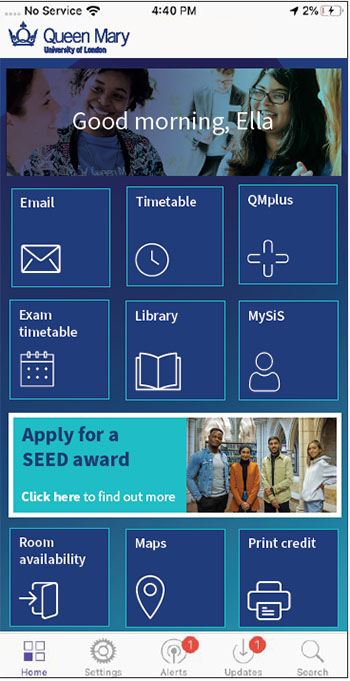 Download the Queen Mary ‘QMUL’ App which has many handy features in one place, including campus maps, attendance recording, library resources and IT service updates.
Download the app on the App Store for Apple or Play Store for Android, by searching ‘QMUL’.
You can also access the app on web browsers by following this link: qmul.ombiel.co.uk
You can find more information here
MySIS is where you see your enrolment information, registered modules, financial information, personal details and provisional results amongst other things.
After enrolment, use your Queen Mary account (not your application account) to access MySIS.
It is important to keep your personal information up to date on your record.
QMplus is your online learning environment.
On QMplus you can access your timetable, module information, assignments and more.
You can access QMplus, and find user guides and ask for help here:
Congratulations on Graduating!
Undergraduate and Postgraduate Taught Students:
Will keep their IT account and email address for 1 year after their award date
Postgraduate Research Students
Will keep their IT account and email address for 2 year after their award date
This allows students time to backup/archive, copy important emails to a personal email address, and sort out an alternative email address if you have used your email for any 3rd party systems. QMUL cannot keep accounts open indefinitely due to the Data Protection Act and governance.
We strongly recommend backing up/copying any important emails and providing all your contacts with an alternative contact method, furthermore any 3rd party systems you are using, you will need to switch to an alternative email address; please do this as soon as possible to avoid you losing any important information.
If you are withdrawn or withdraw from your studies your IT account will be closed immediately.
If you need to contact the university, in future, you can do so using your personal email address.
For access to your transcript, access to MySIS is not required, you can find information here:
For any outstanding QMUL issues please contact
For more information on joining the QMUL Alumni network you can find information here:
Please note that if you have joined the QMUL Alumni this does not give you access to a QMUL account.
What Equipment Do I Need and What is Available to Me
The recommended minimum specification for IT equipment to be procured and used by QM students to study and take exams is as follows.
A laptop with:
- 8GB RAM,
- Windows 11,
- 256 GB SSD.
Headset with a microphone: This enables you participate fully in online learning.
Camera
Connectivity should be via either:
- A broadband link with at least 10Mbps download speed and at least 1Mbps upload speed
- A 4G unlimited data plan PAYG SIM.
If you already own a device with a different specification (e.g. a hard drive that is not an SSD), that may be adequate. The above minimum specification is to guide you if you decide that you need to buy a new device.
/filters:format(webp)/prod01/channel_381/it-services/media/its/images/Picture2.jpg)
/filters:format(webp)/prod01/channel_381/it-services/media/its/images/Loan.jpg)
/filters:format(webp)/prod01/channel_381/it-services/media/its/images/comp-lab.jpg)
/filters:format(webp)/prod01/channel_381/it-services/media/its/images/AdobeStock_816690989_Preview.jpeg)
You said: we did
Since the pandemic, IT Services have not provided a face-to-face service desk for staff or students. In response to your feedback, IT Services is delighted to introduce the IT Student Support Hub for quick, face-to-face help without the need for tickets or appointments, making sure you can maintain smooth access to essential digital tools and services throughout the academic year.
You will be able to drop-in to the IT Student Support Hub for help with:
- Your personal devices, including laptop or mobile issues, software installation, system updates, login difficulties, and access to University platforms and online learning resources.
- Wi-Fi and connectivity challenges, such as Eduroam login problems or staying connected around campus.
- Printing services, from assistance using campus printers and resolving errors to managing print credit and ‘Web Print’ submissions.
Software for Students
/filters:format(webp)/prod01/channel_381/it-services/media/its/5.Appsanywhere---Windows--Apps.png)
Software Catalogue
Coming soon...
/filters:format(webp)/prod01/channel_381/it-services/media/its/images/MS-logos.jpg)
Legal and Policy Statement
ACCESS
Access to any data, program or other information on Queen Mary University of London (QMUL) systems must be authorised by QMUL. It is a criminal offence to obtain unauthorised access or make unauthorised modifications to this computer system. QMUL may refer any unauthorised access to appropriate authorities. Unauthorised users may be subject to CRIMINAL PROSECUTION AND/OR CIVIL ACTION AND/OR QMUL DISCIPLINARY PROCEEDINGS.
USE
Users Must NOT process, publish, create, store, download, distribute or transmit material or data that is:
- Prohibited by UK Law
- Discriminatory or defamatory
- Harassing or threatening
- Derogatory to any individual or group
- Obscene or pornographic
- Engaged in any purpose that is illegal or contrary to QMUL policy or business interests
- Likely to bring QMUL into disrepute
MONITORING and CYBER SECURITY
Queen Mary University of London monitors and protects its IT Systems for the purposes of Operational Integrity, Policy Enforcement and Crime Prevention. Network traffic that poses a risk to any system connected to the network may be blocked.